Switching to the Text Edior
At the top of the editor
there are two tabs, Visual and Text (" 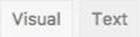 ). These switch the editor
view between the Visual Editor and the Text editor. The Text view will enable
you to view the HTML code that makes up your content. For the more experienced
users this can be helpful at times but for those not familiar with HTML tags,
it’s not recommended.
). These switch the editor
view between the Visual Editor and the Text editor. The Text view will enable
you to view the HTML code that makes up your content. For the more experienced
users this can be helpful at times but for those not familiar with HTML tags,
it’s not recommended.
The Text editor is much like
the Visual Editor, only not as intuitive. The numerous formatting buttons
provide you with basic HTML formatting capabilities when editing your Page or
Post content.
The buttons work in two ways. Clicking a button
without highlighting any text first, will simply insert the opening HTML tag
relevant for that button. As an example, clicking the Bold button will insert the <strong> HTML tag into your text.
Clicking the Bold button again will
close the tag by inserting the closing </strong> tag. If you highlight
some text prior to clicking a button, both the opening and closing tags will be
inserted around that highlighted text. For example, highlighting the text, ‘bold
text’, prior to clicking the Bold button will insert ‘<strong>bold text</strong>’.
The following editor buttons are available
whilst in the Text editor:
"  Bold – Bold text
"  Italic – Italicise text
" Link – Used to insert a website link. When the button is clicked a pop-up window will
appear where you type in the URL that you would like to
link to
Link – Used to insert a website link. When the button is clicked a pop-up window will
appear where you type in the URL that you would like to
link to
" Blockquote – Used as a way of showing a quote. How this looks will be entirely
dependent on the Theme that your site is currently using
Blockquote – Used as a way of showing a quote. How this looks will be entirely
dependent on the Theme that your site is currently using
" Delete – Used as a way of showing deleted text. How this looks will be dependent on
the Theme but is usually done by showing the text with
a strikethrough
Delete – Used as a way of showing deleted text. How this looks will be dependent on
the Theme but is usually done by showing the text with
a strikethrough
" Insert – Used as a way of showing inserted text. How this looks will be dependent on
the Theme but is usually done by showing the text with
an underline
Insert – Used as a way of showing inserted text. How this looks will be dependent on
the Theme but is usually done by showing the text with
an underline
" Image – Used to insert an image into the text. When the button is clicked a pop-up
window will appear where you type in the URL of the image that
you would like inserted
Image – Used to insert an image into the text. When the button is clicked a pop-up
window will appear where you type in the URL of the image that
you would like inserted
" Unordered List – Used to insert an unordered (bullet point)
" Ordered List – Used to insert an ordered (numbered) list
" List Item – Used to insert a list item into your ordered or un-ordered list
" Code –Used for indicating a piece of code
" More – Inserts the More tag into your Page. Most
blogs only display a small
excerpt of a Post and you’re required to click the Post title or a ‘Read
more...’ link to continue reading the rest of the article. When you insert a ‘More’
tag into your Post, everything prior to the tag is considered as this excerpt.
Most times you’d only use this button when you’re creating a blog Post, rather
than a Page
More – Inserts the More tag into your Page. Most
blogs only display a small
excerpt of a Post and you’re required to click the Post title or a ‘Read
more...’ link to continue reading the rest of the article. When you insert a ‘More’
tag into your Post, everything prior to the tag is considered as this excerpt.
Most times you’d only use this button when you’re creating a blog Post, rather
than a Page
" Close Tags – Used to close open tags. If for example, you clicked both the Bold
and Italic buttons to insert their opening tags, clicking the Close tags button
will insert both of the matching closing tags, in the correct order
Close Tags – Used to close open tags. If for example, you clicked both the Bold
and Italic buttons to insert their opening tags, clicking the Close tags button
will insert both of the matching closing tags, in the correct order
" Distraction Free Writing – Clicking this button will
enlarge the editor so that it fills
the browser window. Clicking the Exit fullscreen link at the top of the
screen will reduce it back to its original
size
Distraction Free Writing – Clicking this button will
enlarge the editor so that it fills
the browser window. Clicking the Exit fullscreen link at the top of the
screen will reduce it back to its original
size
Related Articles
WordPress 背景
在本章中,我们将研究背景图像,背景颜色和背景不透明度。 步骤(1) - 点击 Appearance → Background。 步骤(2) - 显示以下页面,其中显示背景图片部分。 步骤(3) - 没有为背景选择图片。 如果您要这样做,请点击选择图片。 你得到以下页面。 在这里您可以使用两个选项上传图片。 Upload Files Media Library 步骤(4) - 上传文件 - 当您点击上传文件时,将显示以下屏幕。 从桌面选择文件,然后点击选择图像,如果对图像感到满意。 ...WordPress 添加链接
在本章中,我们将学习在WordPress页面中添加链接。 链接是从一个资源到另一个资源的连接。 添加指向您的网页或博客帖子的链接可帮助您连接到其他网页。 以下是在WordPress中添加链接的简单步骤。 步骤(1) - 点击WordPress中的Pages → All Pages 。 步骤(2) - 在WordPress中创建的页面列表将显示如下所示的屏幕。 选择任意页面以在其中添加链接。 在这里,我们将在关于我们页面中添加链接。 步骤(3) - ...WordPress 编辑媒体
在本章中,我们将研究如何在wordPress中编辑媒体。 您可以管理保存在媒体库中的有关媒体的所有信息。 以下是在WordPress中编辑媒体的步骤。 步骤(1) - 点击 Media → Library ,然后点击媒体项目的名称或编辑链接。 步骤(2) - 您将查看媒体文件列表。 选择要编辑的任何一个图像。 步骤(3) - 您可以查看编辑媒体页面,右侧有几个选项。 URL - 您只能从媒体文件中读取链接。 Title - ...WordPress 添加页面
在本章中,我们将研究如何将添加页面添加到WordPress中。 添加页面类似于在WordPress中添加帖子。 页面是静态内容,通常不会更改其显示的信息。 以下是在WordPress中添加页面的简单步骤。 步骤(1) - 点击 Pages → Add New ,如下面的屏幕截图所示。 步骤(2) - 您将获得如下面屏幕截图所示的编辑器页面。 编辑器页面有两个选项卡,Visual和Text。 您可以在其中任一插入文本。 在这里,我们将研究如何将文本插入到Visual格式。 ...WordPress 安装
WordPress的系统要求 数据库 - MySQL 5.0&amp; plus; Web服务器 - WAMP(Windows) LAMP(Linux) XAMPP(Multi-platform) MAMP(Macintosh) 操作系统 - 跨平台 浏览器支持 - IE(Internet Explorer 8&amp; plus;),Firefox,Google Chrome,Safari,Opera PHP兼容性 - PHP 5.2&amp; plus; 下载WordPress ...